
How it works . What happens, start to finish.
Five steps, from the first tap to the morning everyone sees the photos. Setting up takes a few minutes, and guests have nothing to install.
01
Create the event.
Sign in with your email (we send you a link, so there is no password), then fill in one short form.
- A name, and a cover photo if you like.
- When the camera opens and when it closes.
- When everyone gets to see the photos. The next morning works well.
- How many photos each guest gets per day: 6, 12, 24 or 36.
- One look for the whole chapter: no filter, disposable, or black and white.
Free for up to 10 guests. Bigger sizes, up to 250, arrive with the iPhone app.
New event
Free · up to 10 guests
An example of the form. Yours takes a few minutes.
02
Share the code.
You get a QR code and a link. Print the code on table cards, programs or signs, or send the link in a message. Either one opens the camera.
- Save the QR code as an image and drop it into any card design.
- Copy the link and send it to the group chat.
- The code keeps working for as long as the chapter exists, so you can print early.
- Guests don’t need your email, an account or an app.
The Big Day
Scan to take photos
No app. No account. Everything is sealed until the reveal.
A table card. This code opens the camera demo, so you can scan it with your phone.
03
Guests take photos.
A guest scans the code with their normal camera app. A page opens, they type a first name and say they’re 13 or older, and the camera is ready.
- Each guest gets a set number of photos per day, so every one counts.
- No preview and no retake. A photo is final the moment it’s taken.
- Photos are saved on the phone first and sent when there’s signal, so a dead zone only delays a photo.
- The camera works only while it’s open, and you choose when that is.
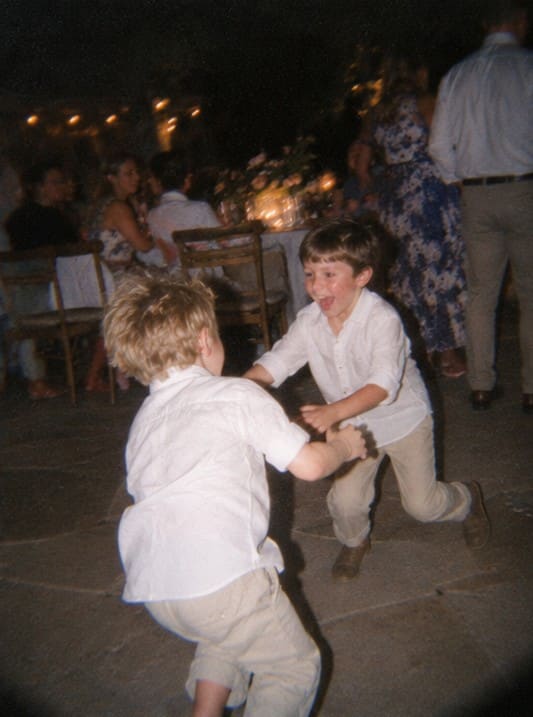
What a guest sees.
04
Nobody looks.
From the first photo until the reveal, no one is shown a single photo. Not the guests. Not you. Not our support tools.
- You can see who has joined and how many photos have come in.
- You can keep the camera open longer if the party runs late, or close it early.
- You can remove any guest at any time, and once the album opens you can take down any photo.
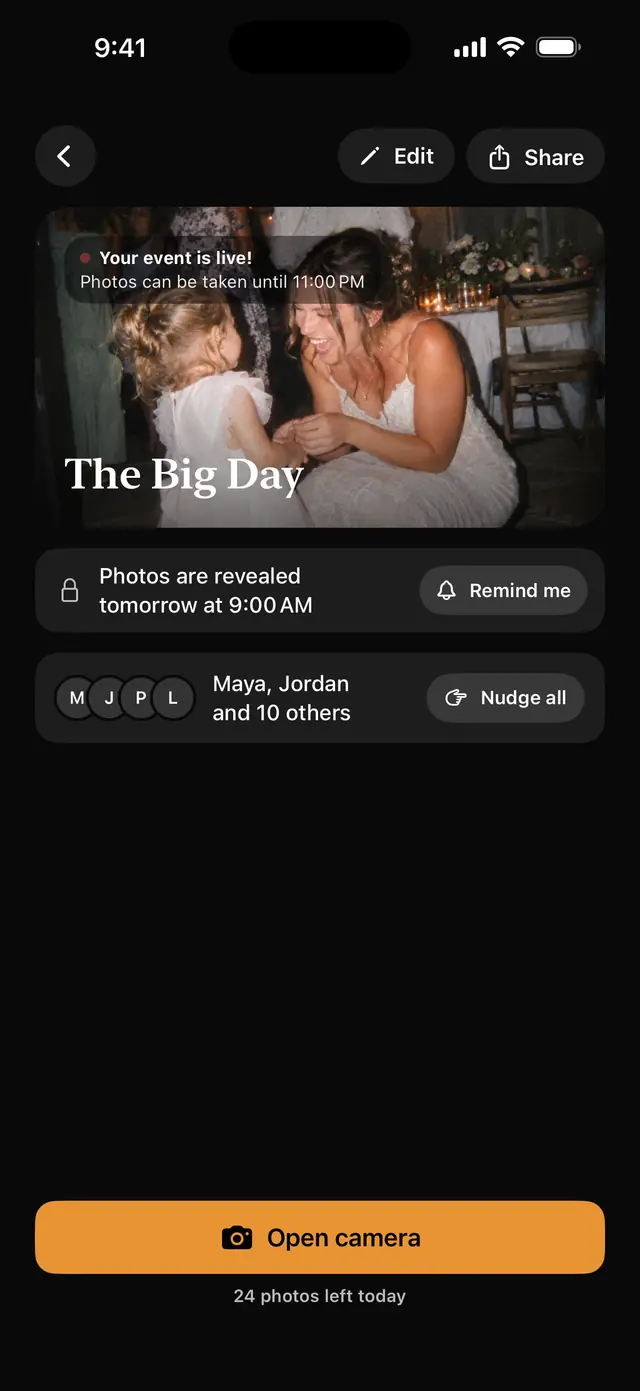
The host’s view in the iPhone app: who has joined and how many photos are in. Never the photos.
05
Everyone wakes up to the album.
At the time you chose, the whole album opens at once, for you and for every guest. Each photo shows who took it.
- The host can save the whole album to their phone, and guests can save the photos they like.
- Photos stay for a full year after the reveal. Save the ones you want to keep before then.
- Guests see the album too, with the same link.
With the iPhone app, a trip or a wedding weekend can open a new day each morning.
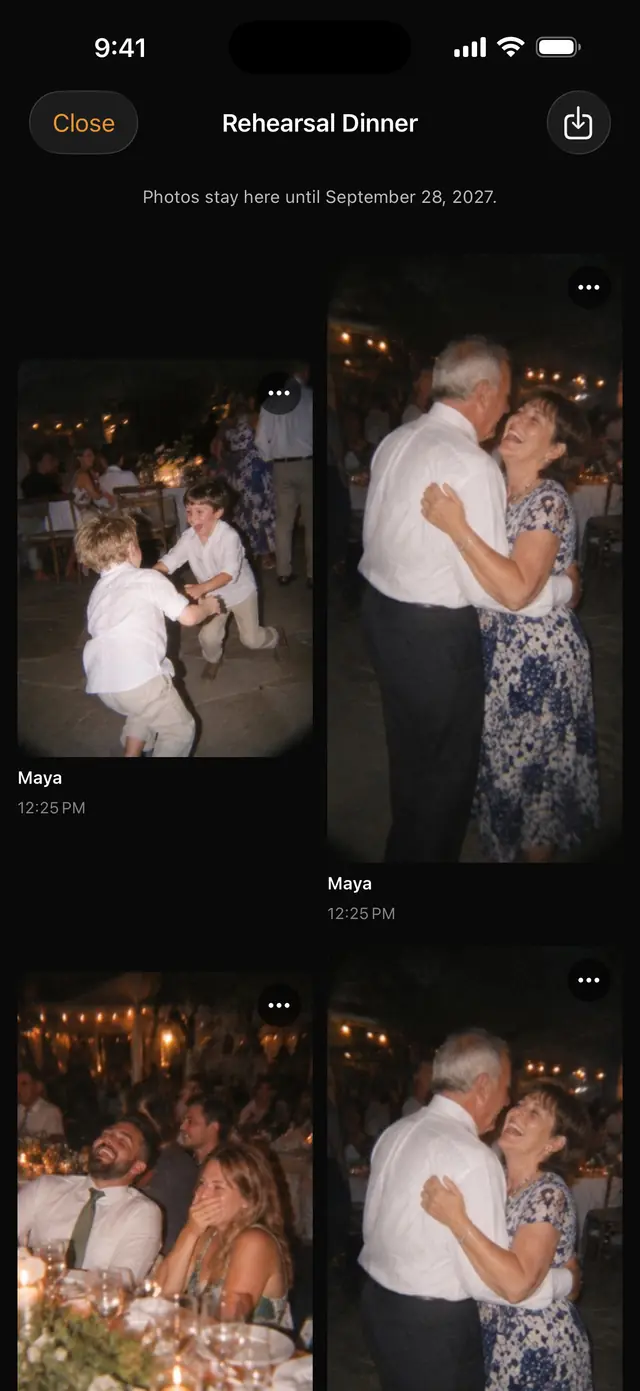
The album the morning after.
Who decides what
You’re in charge. Mostly.
The host runs the night. A few things are locked on purpose, because they’re what makes the reveal worth waiting for.
You decide
- When the camera opens and closes
- How many photos each guest gets
- Which look the photos have
- When the reveal happens
- Who gets the link
- Whether to keep the camera open longer
- Who stays and which photos stay: remove a guest, take down a photo after the reveal
Nobody can
- Look at a photo before the reveal, not even the host
- Retake a photo once it’s taken
- Add photos from a phone’s photo library
- Change the look after the chapter is created
- Turn the album into a live feed
Where it works
In your browser today. In the app soon.
You can start in your browser right now. The iPhone app is with Apple for review, and it adds the bigger sizes and the multi-day chapters.
| What you can do | In your browser | iPhone app |
|---|---|---|
| Create a chapter and share a QR code | Yes | Yes |
| Guests join and take photos in their phone’s browser | Yes | Yes |
| Free for up to 10 guests | Yes | Yes |
| Bigger sizes, 25 to 250 guests | Not yet | Yes |
| One night per chapter | Yes | Yes |
| Up to 7 days, with a new reveal each morning | Not yet | Yes |
| Choose 6, 12, 24 or 36 photos per guest, per day | Yes | Yes |
| Three looks, all free | Yes | Yes |
| See who joined and how many photos, never the photos | Yes | Yes |
| Remove a guest, or take down a photo after the reveal | Yes | Yes |
| Keep the camera open longer, or close it early | Yes | Yes |
| The host saves the whole album to their phone | Yes | Yes |
| Reveal reminders | Not yet | Yes |
Questions
The ones people ask first.
How long does it take to set up?
A few minutes. You name your event, choose when the camera opens and closes, choose when everyone gets to see the photos, and share the QR code or link.
Can the host look at the photos early?
No. Nobody can, not even the host. Until the reveal time, no one is shown a single photo: not guests, not you, and not our support tools.
You can see who has joined and how many photos have come in, but never the photos themselves.
What if the party runs late?
You can keep the camera open longer. The reveal stays where you set it, unless the camera is now open past 8:00 AM, in which case it moves to the next morning. You can also close the camera early if you need to.
How long are photos kept?
A full year after the reveal. With the iPhone app, the album shows the exact date. Save the photos you want to keep before then. If you delete your account, your chapters and their photos are erased.
Ready when you are
Make tonight a chapter.
A few minutes to set up. Free for up to 10 guests.
The iPhone app is with Apple for review. You can start in your browser today.